
Booking widget
Add a booking system to your website, or skip the website
You don't need a new website for customers to book by themselves. Paste a snippet of code where you'd like booking to appear, or share your link and your QR code on social media, in messages and at your premises.

<iframe data-konreservas-widget src="https://reservar.konreservas.com/demo-peluqueria" title="Booking widget" width="100%"></iframe><script src="https://reservar.konreservas.com/insertar.js" async></script>
What a booking system for your website gets you
Inside your website
Paste a snippet and booking appears on your page, at just the right height.
No site? Your link
A short link with your name, for social media, messages and your Google profile.
At your premises, a QR code
Print it or download it for your counter, your window or your cards.
No account, two languages
Customers book in English or Spanish, with no username or password.
Three ways to take bookings
Your link, your QR code and your website: one booking system
It all comes from the same place in your dashboard. Customers arrive wherever they already look for you, and bookings land in the same diary.


Your short link
Your business gets a short link with its name, along the lines of reservar.konreservas.com/
Your QR code
Your dashboard gives you the QR code for your booking link: print it on a poster or download it for your premises, your window or your cards. Anyone who scans it with their phone lands on your booking page.
The code for your website
Copy the code and paste it into your site: the widget adjusts its height to fit the content. Or add a button that opens your booking page.
Where to put it
Where to put your booking link, place by place
In the dashboard, next to your link, you get the steps for each place and a message ready to paste, with your business's name.
- Instagram: on the “Book” action button if your account lets you add your own link; otherwise, under “Links” on your profile, in your stories with the link sticker and in your messages.
- Google: on your Business Profile, as your bookings or appointments link, so the booking button shows.
- WhatsApp: a button opens WhatsApp with the message already written, and you choose who to send it to.
- Facebook: on your page's “Book” button, with your own link, and in a post pinned to the top.
- Your website and your premises: the button or the calendar inside your page, and the poster with your QR code.
- And the link to your customer portal, with its copy button, so each customer can see their bookings whenever they like.

On your website
Adding the code to your website, step by step
There's no plugin to install: it's a snippet that goes on the page. The idea is the same on WordPress or another platform, as long as it lets you embed code.
- If someone else looks after your website, the dashboard emails them both snippets, ready to use.
- If your site won't let you embed code, add a button that opens your link.
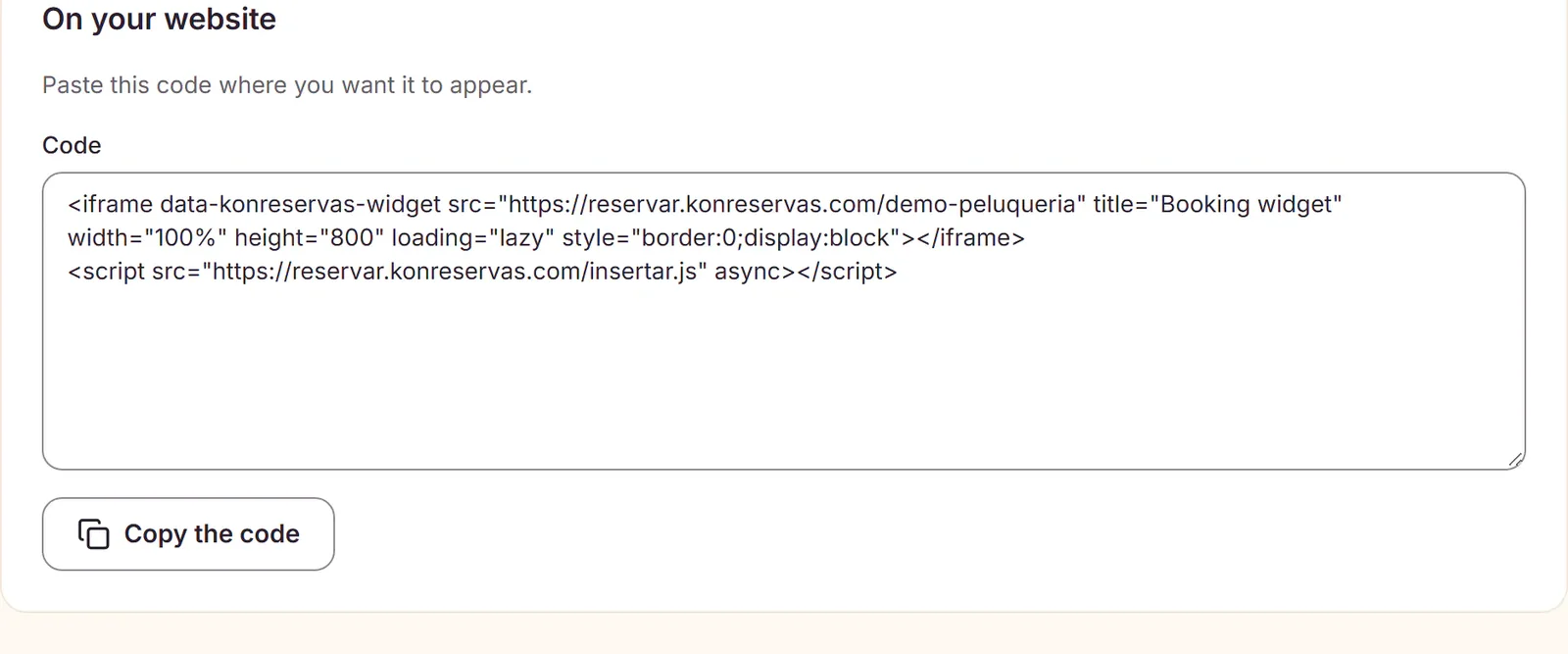
Copy your code
Your link and your code are both in the widget section of your dashboard.
- HTML · Bookings
<h2>Book your appointment</h2><iframe data-konreservas-widget src="https://reservar.konreservas.com/demo-peluqueria"></iframe><script src="…/insertar.js" async></script>Find where to embed it
It's usually called “HTML” or “embed”. Choose your bookings page, or create one.
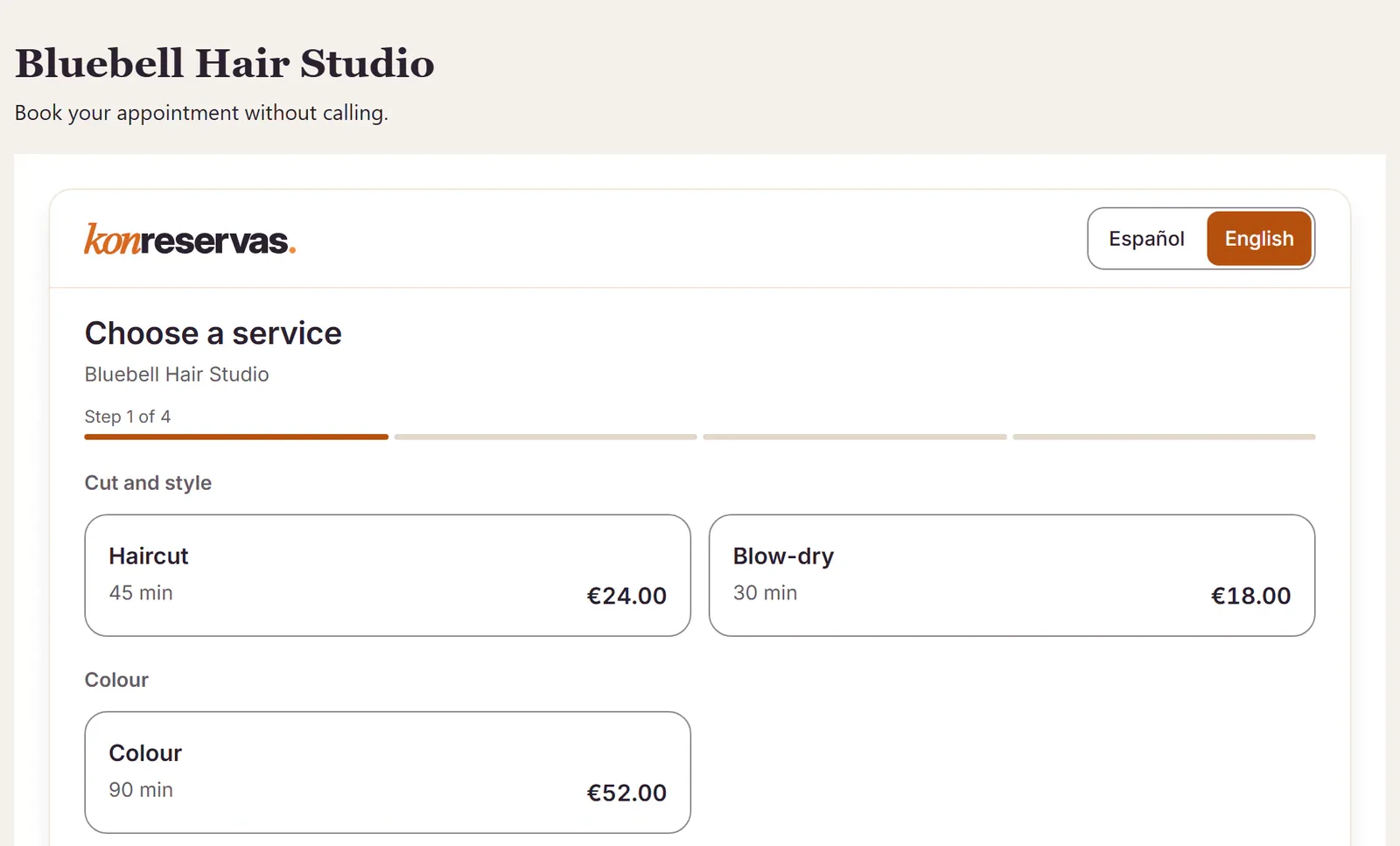
Paste and publish
Booking appears inside your page and the widget adjusts its height to fit the content.
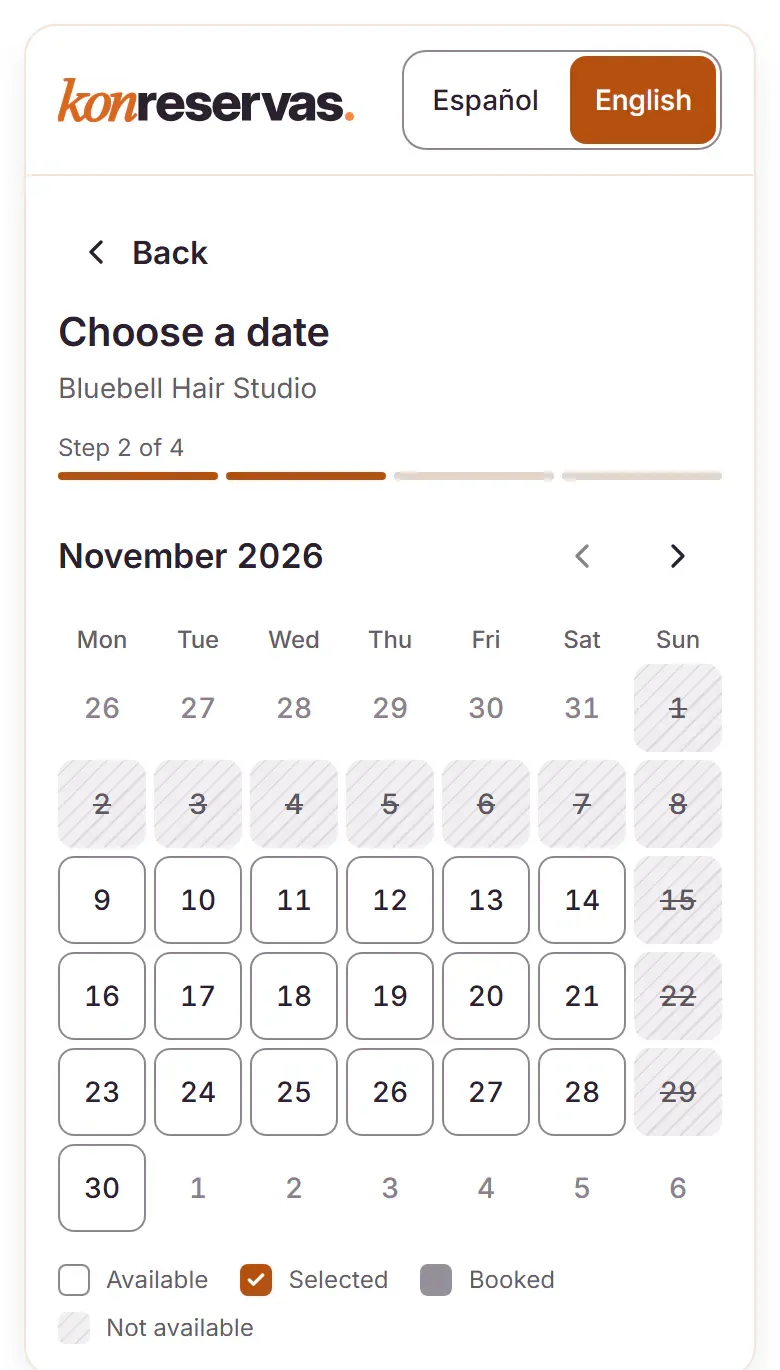
Test it on your phone
Make a test booking yourself, on your phone, and check it looks right on your page before you announce it.

How customers book
What your customer sees, in four steps and with no account
From your website, your link or your QR code, on a phone or a computer, the journey is the same.
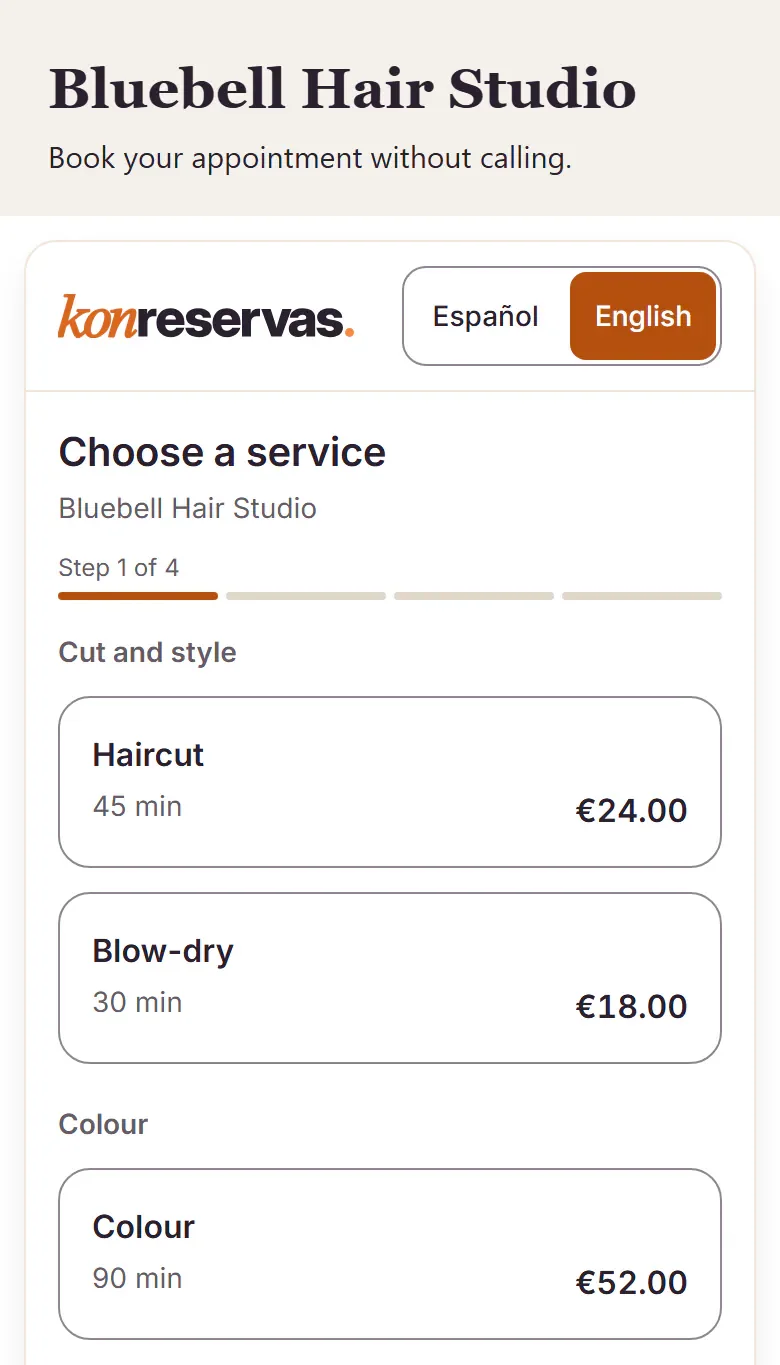
They choose
A service, a class, a visit or a table, depending on your business, in your categories.
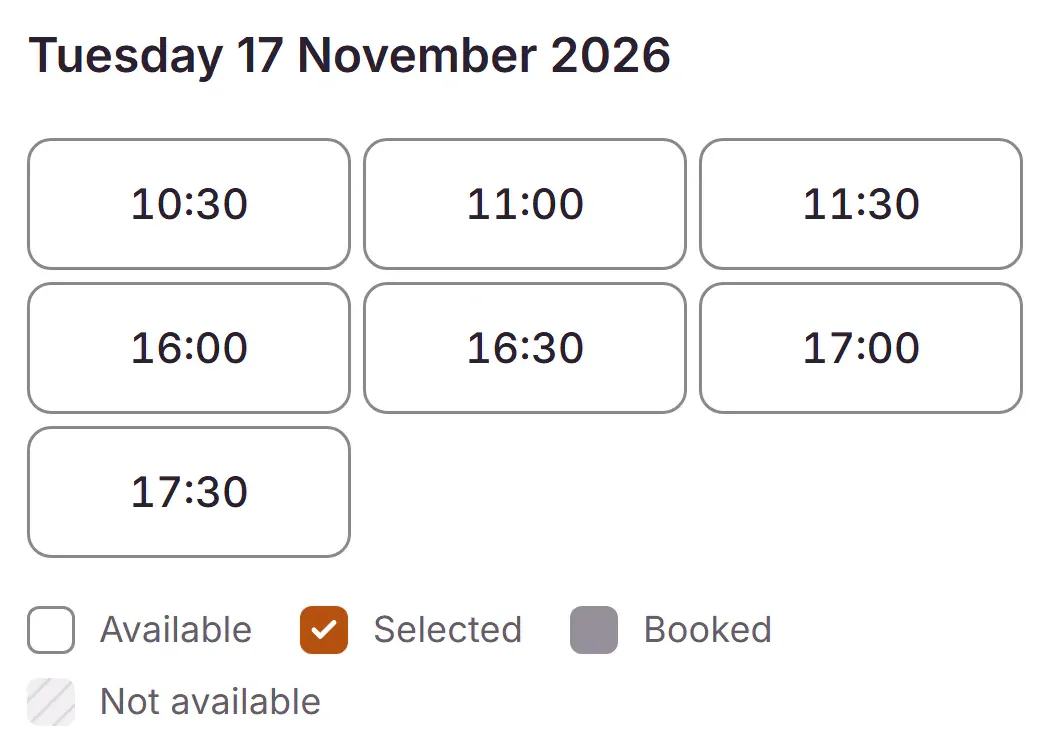
They pick a day and time
They only see free slots: availability takes people, resources and places into account.
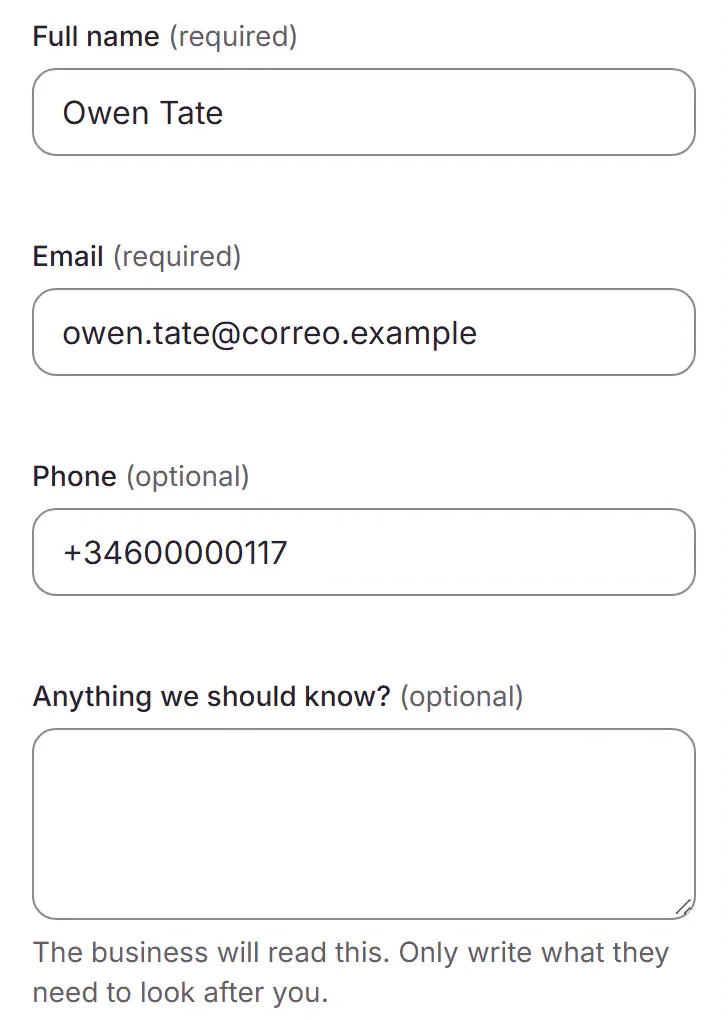
They add their details
Name and email, a phone number if they want to give it, and whatever the business chooses to ask.
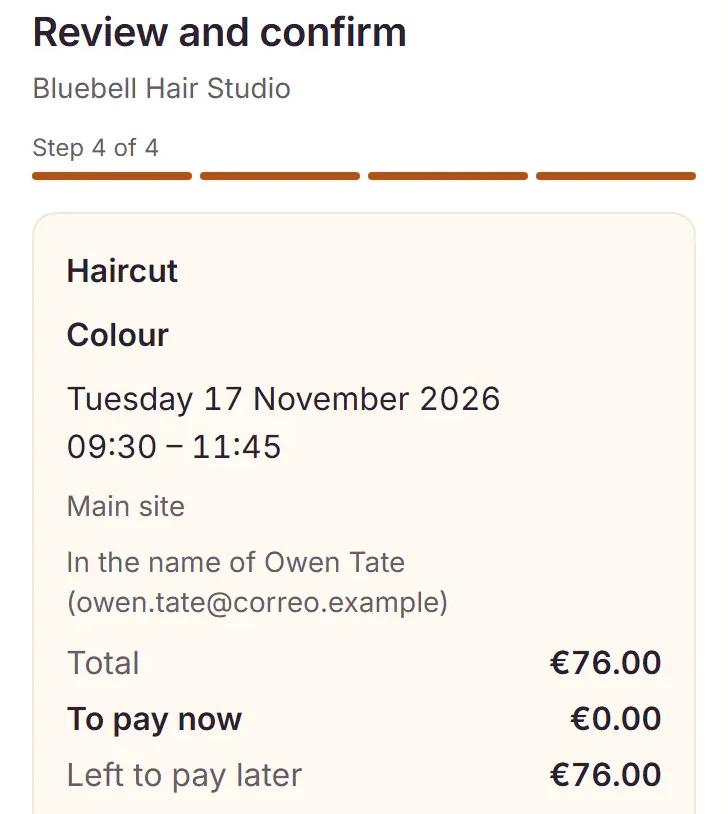
They check and confirm
They see the summary and, if you've set them, your terms before confirming.


What it asks
What it asks when they book: just enough, plus your questions
Customers are only asked for a name and email, and a phone number if they feel like giving it; for visits, the address too. Anything else is yours to ask.


Your own questions
Add text, number, list or tick-box fields, required or optional, to every service or a handful, like a number plate or a pet's name. Their answers appear on the booking and in your exports.
The customer's note
Turn on the note field and customers can write whatever they want to mention as they book.
Internal notes
Your team can keep an internal note on each appointment, which customers never see.
Discount codes and passes
Discount codes at checkout and session passes, in the same widget
What you sell and charge for at booking also goes through your widget, and customers only leave your site to pay.
- Discount codes at checkout: if you've created discount codes, customers type theirs at the payment step and see the price already discounted before they confirm.
- Customers can buy a session pass in the widget itself, pay with whichever payment methods you have switched on and then book with its code. They see what's left in their portal.
- If you take payment up front, it happens on a separate full page, and the customer then comes back to the booking. If a service doesn't ask for advance payment, that step doesn't happen.
- For the services you choose, a booking can be a request that you accept or decline. This doesn't apply to classes.
How payments and deposits work
Try the demo
Easy for customers
On a phone, in two languages and with no account
The widget is made for people booking from the sofa, at the bus stop or outside your window.

On any screen
Both the widget and the dashboard adapt to a phone screen, and the dashboard also works with the iOS and Android app.
English or Spanish
Customers book in English or Spanish, and switching language doesn't change the prices or the times.
No username or password
Nobody has to sign up: with their name and email, the booking is done.
Their booking, at hand
Their email carries a link to view the booking without an account and change or cancel it as your policy allows; with no policy, they ask to cancel and you review it. And in their portal, which they open with a link sent to their email, they have all their bookings with you.
In their calendar
When they finish booking they can download a calendar file.
Several locations
If you have several locations, customers choose which one they're booking at. The link goes to the business, not to one location.
What you sell
The same widget for appointments, classes, visits and tables
The widget adapts to what you sell, and you can offer appointments and classes from the same account.
Appointments with your team
Service, a person or whoever's free, day and time. Appointments.
Classes with places
When a session fills up, it stops being offered. Classes and places.
Home visits
Bookings only come in from the areas you cover. Home services.
Tables
By party size, day and time. Table bookings.
Before and after
From giving out times by message to a booking system for your website
What changes when customers book by themselves, from wherever they already find you.
| Without online booking | With Konreservas |
|---|---|
| You spend the day handing out times by phone and message. | Customers book on their own from your website, your link or your QR code. |
| Your website only has a phone number and a form. | Your website has booking inside it, at just the right height. |
| You type your link manually everywhere. | You get the steps for each place and a message ready to paste. |
| You note down the details customers read out. | Customers leave their details and answer your questions. |
| You ask for the deposit separately and note it down. | Payment, if you ask for it, happens when they book. |
Where it fits
Businesses that take bookings from their website and social media
It works for any business that gives out times. Here's how it looks in a few of them.
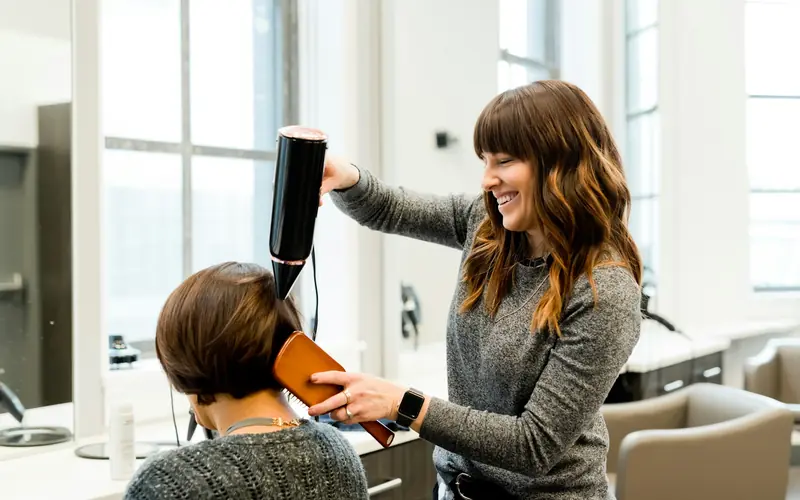
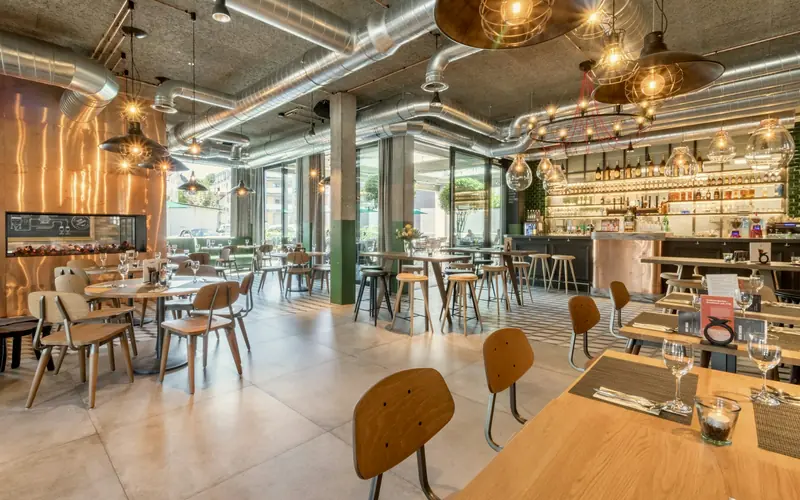



- Try the demo: Hair salonOpen the example salon's widget and go through the booking to the end.


Frequently asked questions
Is there a WordPress plugin?
You don't need one: it's a snippet you paste. If your WordPress site lets you add HTML to a page, that's where it goes.
Do I need a developer?
You need to be able to copy some text and find where to paste it on your site. If that's not for you, whoever looks after your website can do it with the code from your dashboard. The link needs none of this.
Can I choose the link?
It starts with your business name, and you can change it. The old one keeps working.
Can I have a “Book” button on Google, Instagram and Facebook?
With your link, nearly always. On your Google Business Profile you add it as your bookings or appointments link, though in some categories, such as certain healthcare ones, Google doesn't show the button. On your Facebook page, the “Book” button takes your own link. On Instagram, the action button only accepts your link if your account has that option; if not, you put it in your bio, stories and messages. The dashboard walks you through it under “Share your link”. What there isn't is booking done inside Google or Instagram: your customer always books on your Konreservas page.
Is a booking confirmed straight away?
If a service doesn't ask for advance payment, the booking is confirmed straight away. If it asks for a deposit or the full price, it's confirmed when the payment arrives. And for the services you choose, a booking is a request that you accept or decline; if you don't reply in time, it's released and both sides are told. This doesn't apply to classes.
How much does it cost?
The widget, the link and the QR code come with the fee, with nothing extra for putting them on your website: Essential, €19; Team, €49; Business, €79 a month in euros, VAT included and with no minimum term. The widget installs the same way on any plan, and Team and Business add free migration of your customer list and services from your current software, wherever possible. Every plan includes the calendar, online booking, payments and reminders. Team and Business add winning back customers, reports per professional with targets and team commissions; Google reviews come included on Team and Business, and cost €10 a month, VAT included, on Essential. If the widget takes payment with integrated payments, which you switch on with one button: 0.5% on each payment you take, plus Stripe's fees. Security deposits you ask your customers for carry no Konreservas fee. See Stripe fees. When a widget booking is paid through your own Stripe account or your bank's virtual POS via Redsys, or by bank transfer or in person, Konreservas charges no commission per booking; your payment provider charges its own, and that is separate. Each plan is on the pricing page.
Put your bookings where your customers already are
Add your services and copy your link, your QR code and the code for your website.